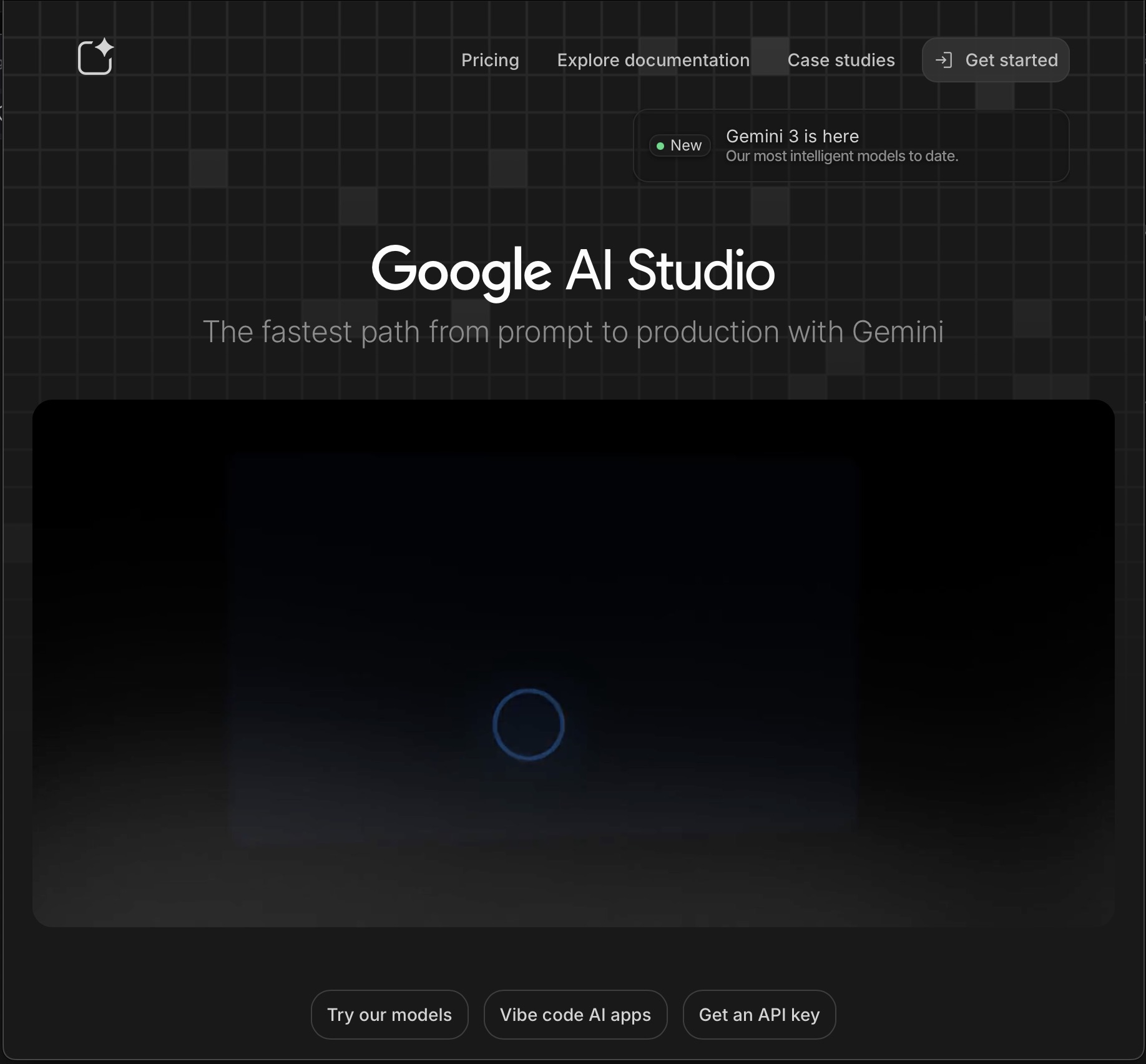
Step 1: Access Google AI Studio
Navigate to Google AI Studio to begin the process of generating your API key.
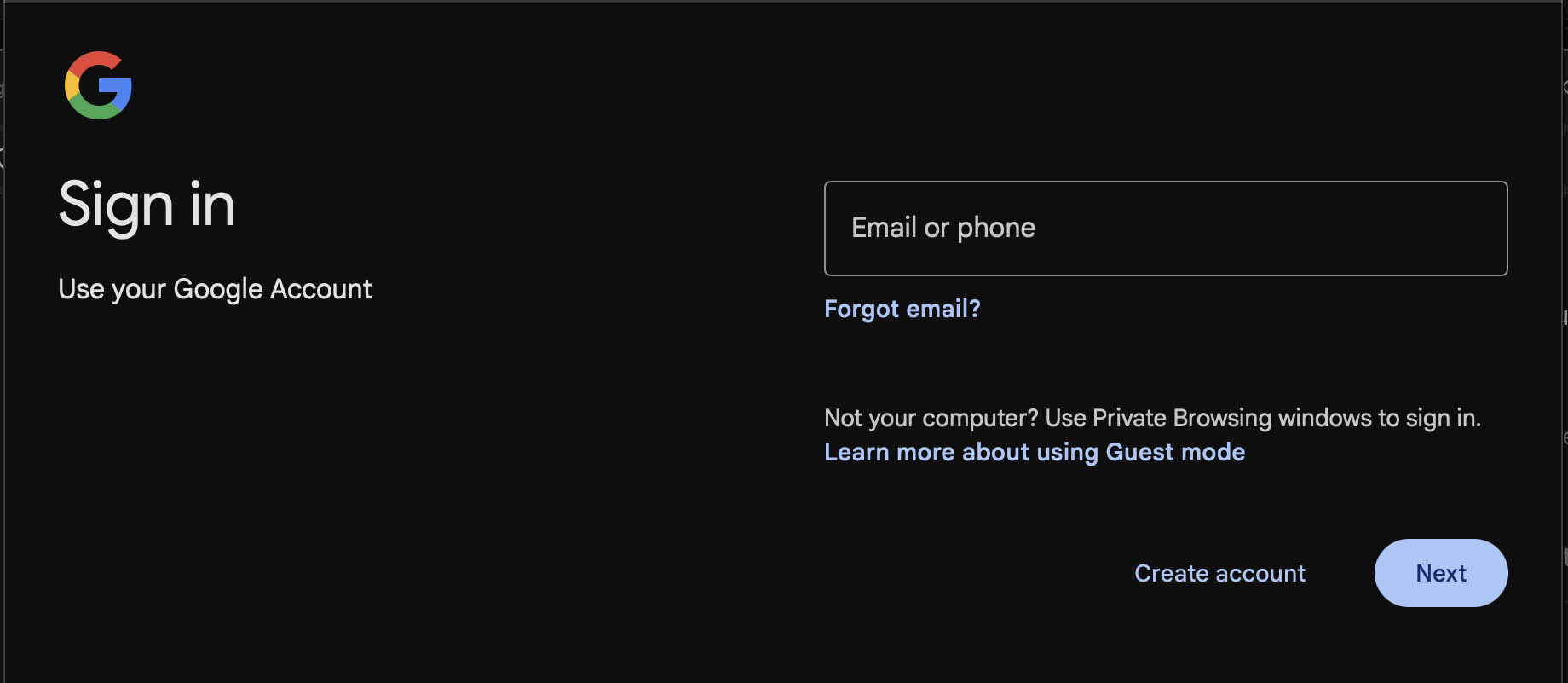
Step 2: Sign In to Google
Sign in with your Google account. If you don't have one, you'll need to create one.
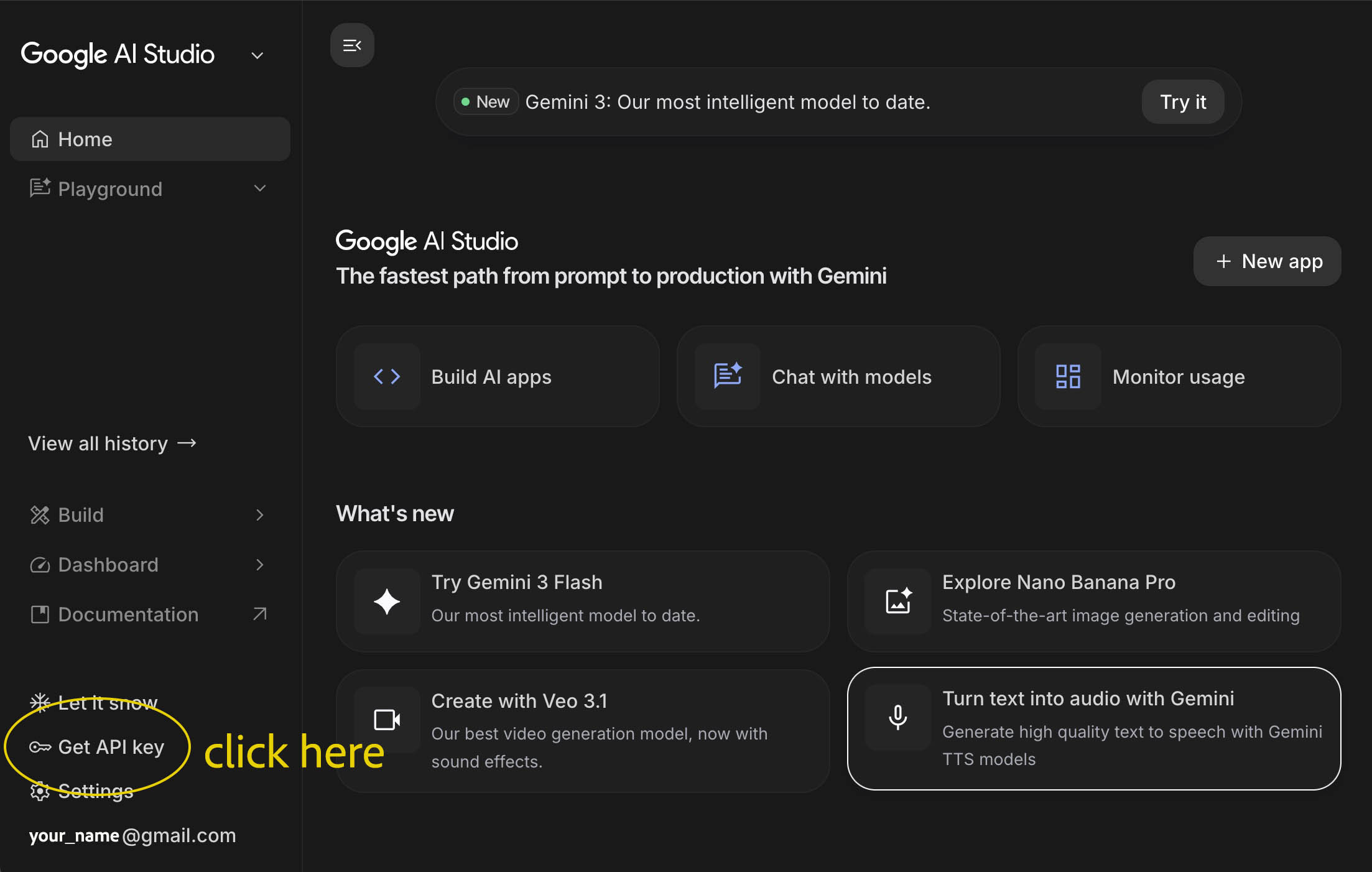
Step 3: Google AI Studio page
Once signed in, you will land on the Google AI Studio dashboard. Click on "Get API key'
Step 4: API Key page
Look for the option to manage or create API key, usually found in the top right of the screen.
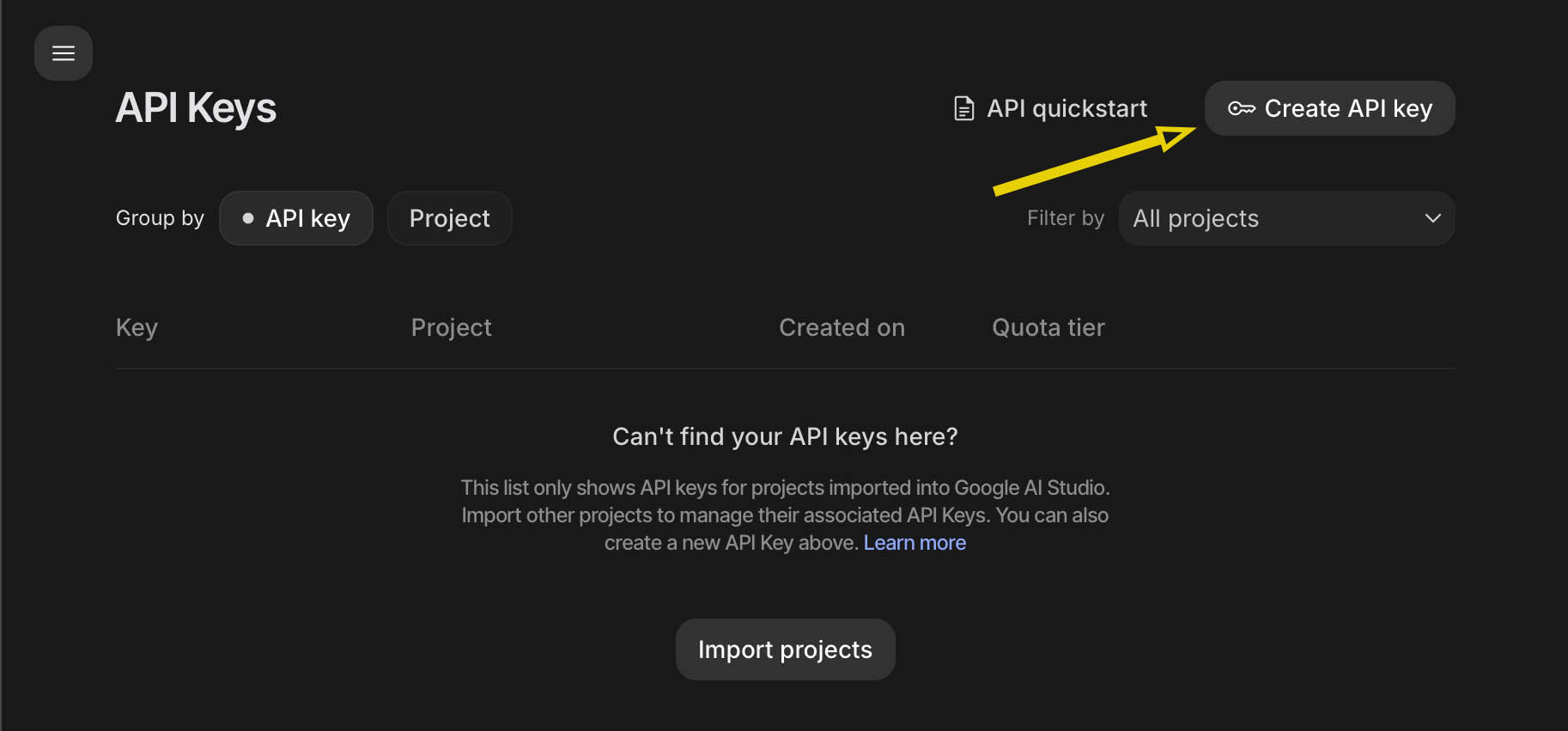
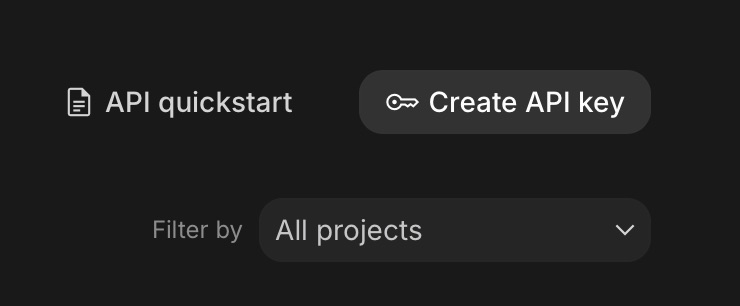
Step 5: Click 'Create API Key'
Initiate the creation of a new API key by clicking the designated button.
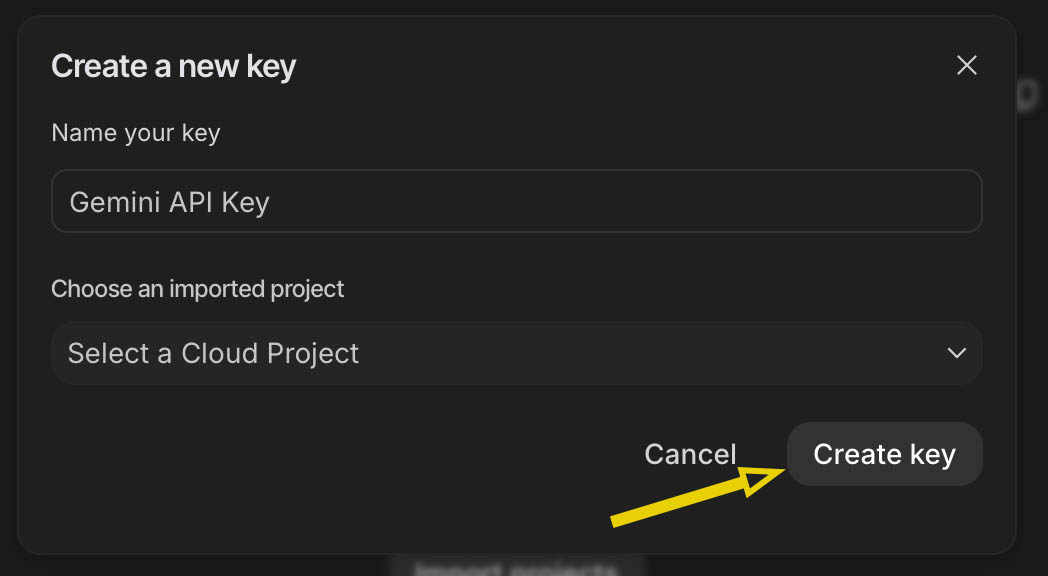
Step 6: 'Create a New Key' Window
A dialog box will appear, prompting you to create a new API key.
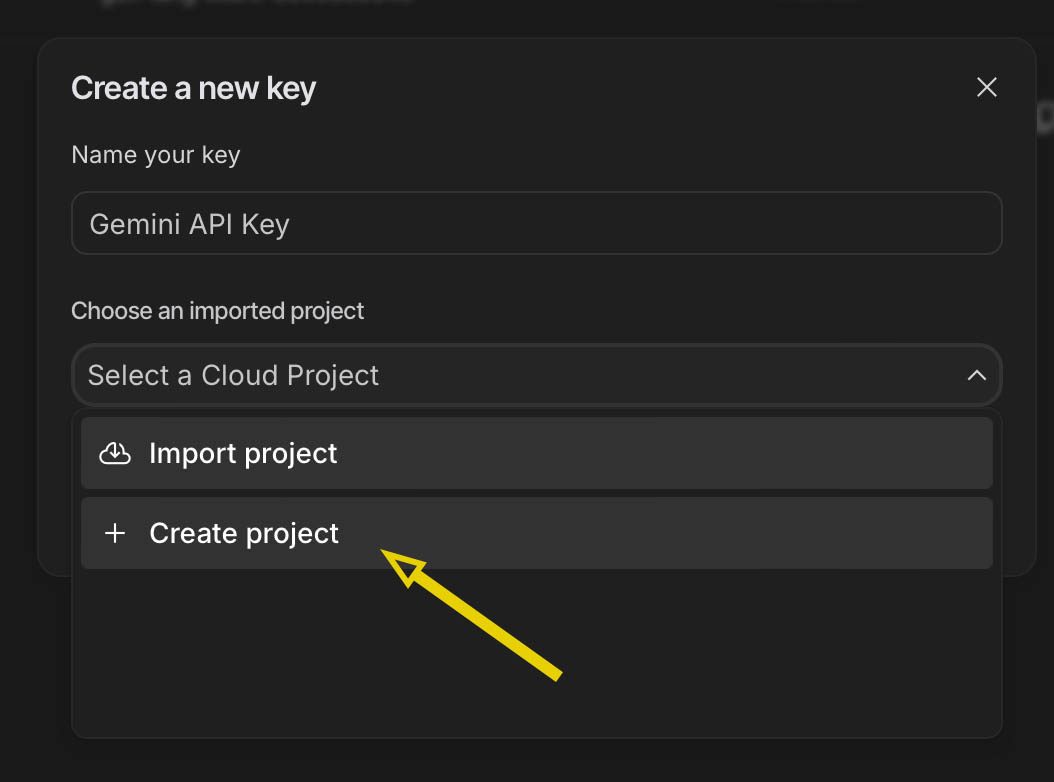
Step 7: Create a New Project
If prompted, create a new project to associate with your API key.
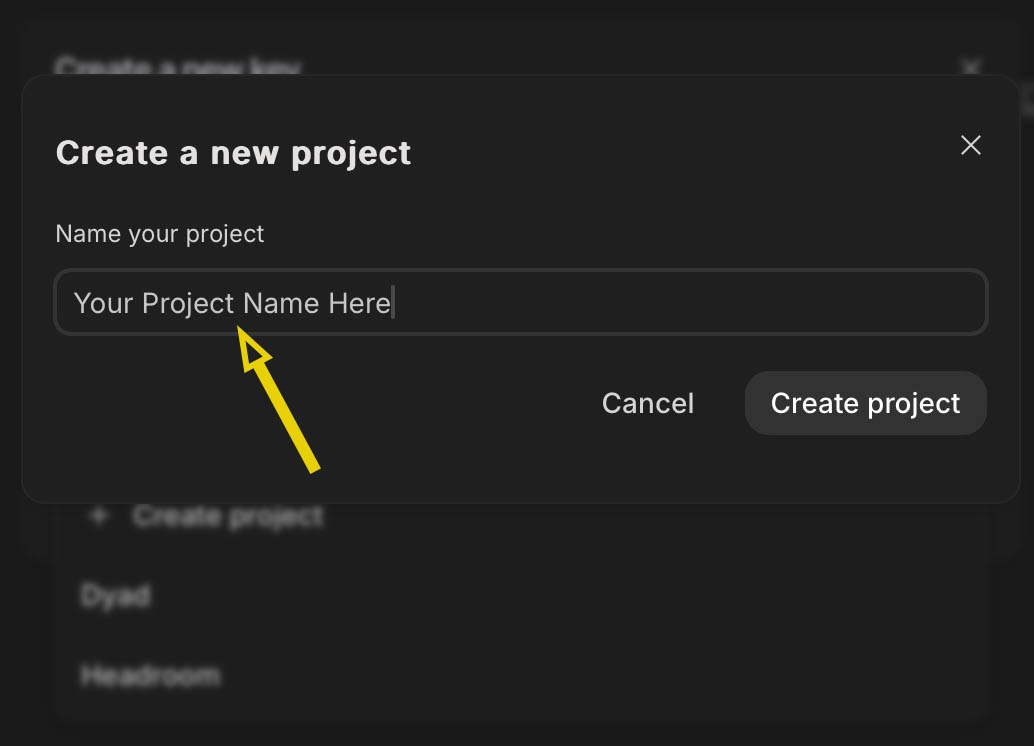
Step 8: Name Your Project
Give your new project a descriptive name.
Step 9: Name Your Key
Assign a meaningful name to your API key for easy identification.
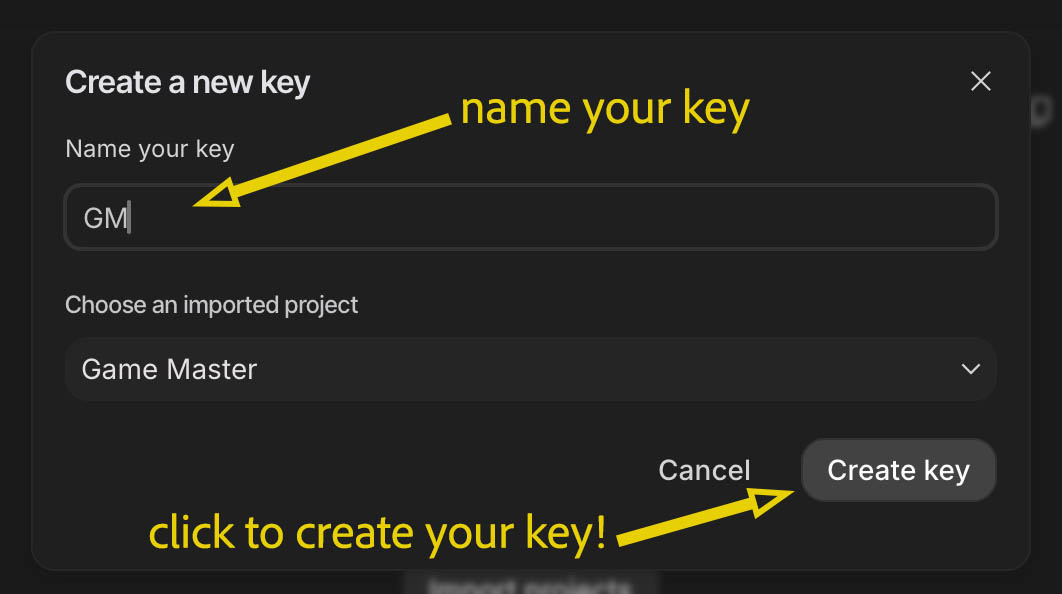
Step 10: Select Your API Key Link
After creation, select the newly generated API key from the list.
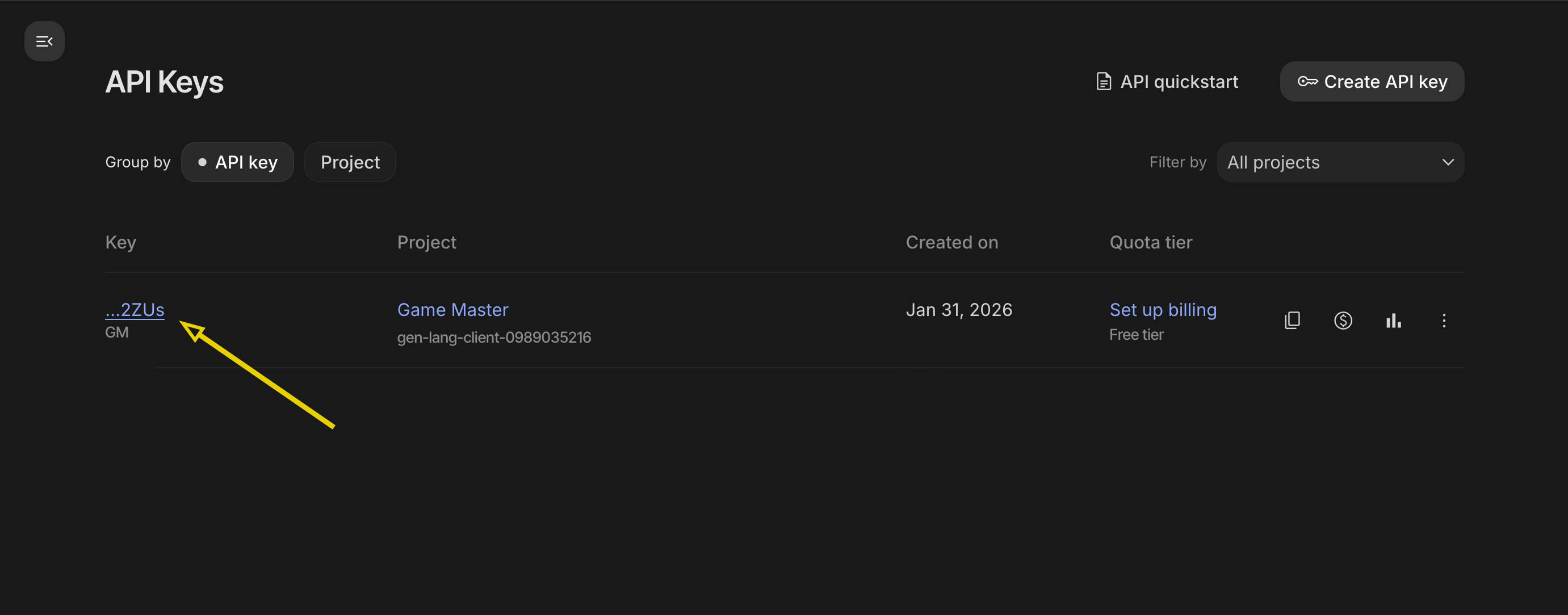
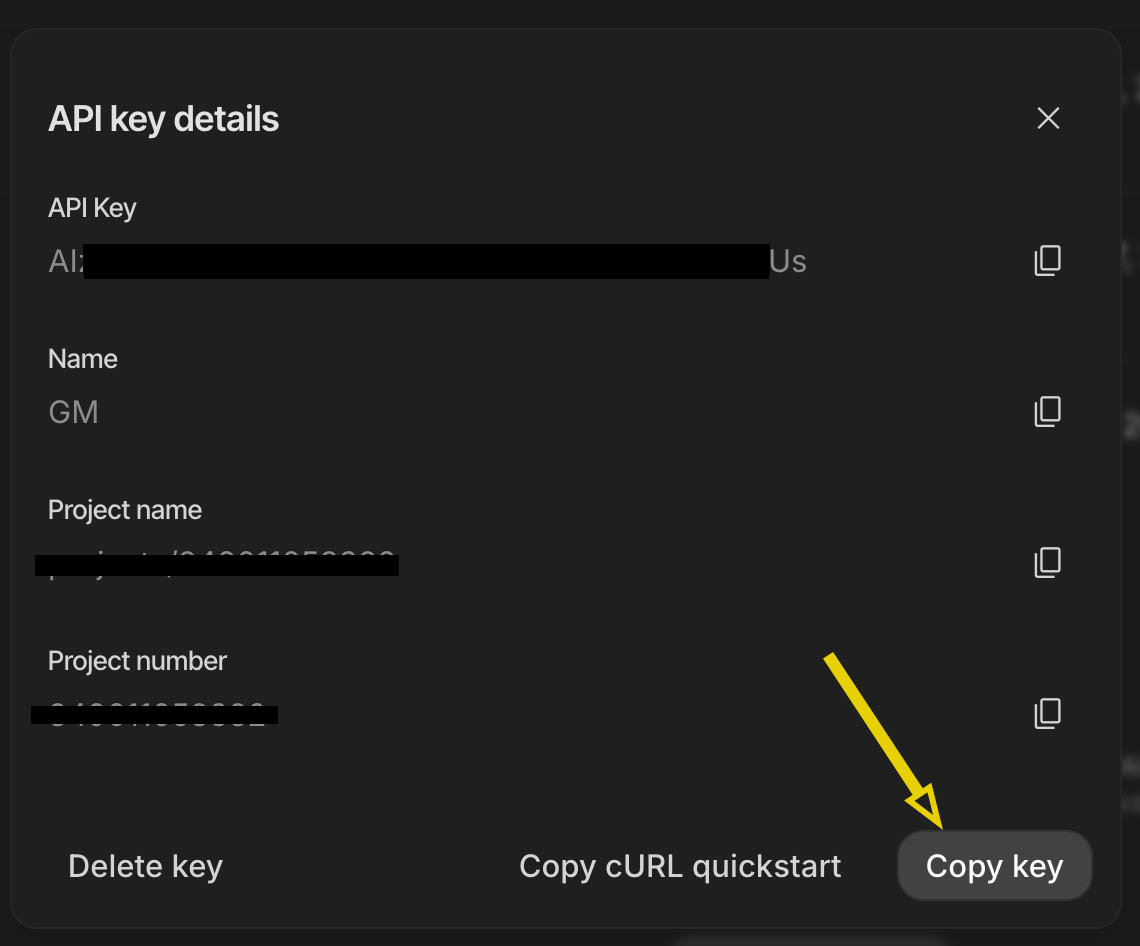
Step 11: Copy API Key
Copy the generated API key to your clipboard. Keep it secure!
Step 12: Return to Game Web Page
Once copied, return to the game or web application.
Broken Trails
Cybertopia
BitWAVE fx8
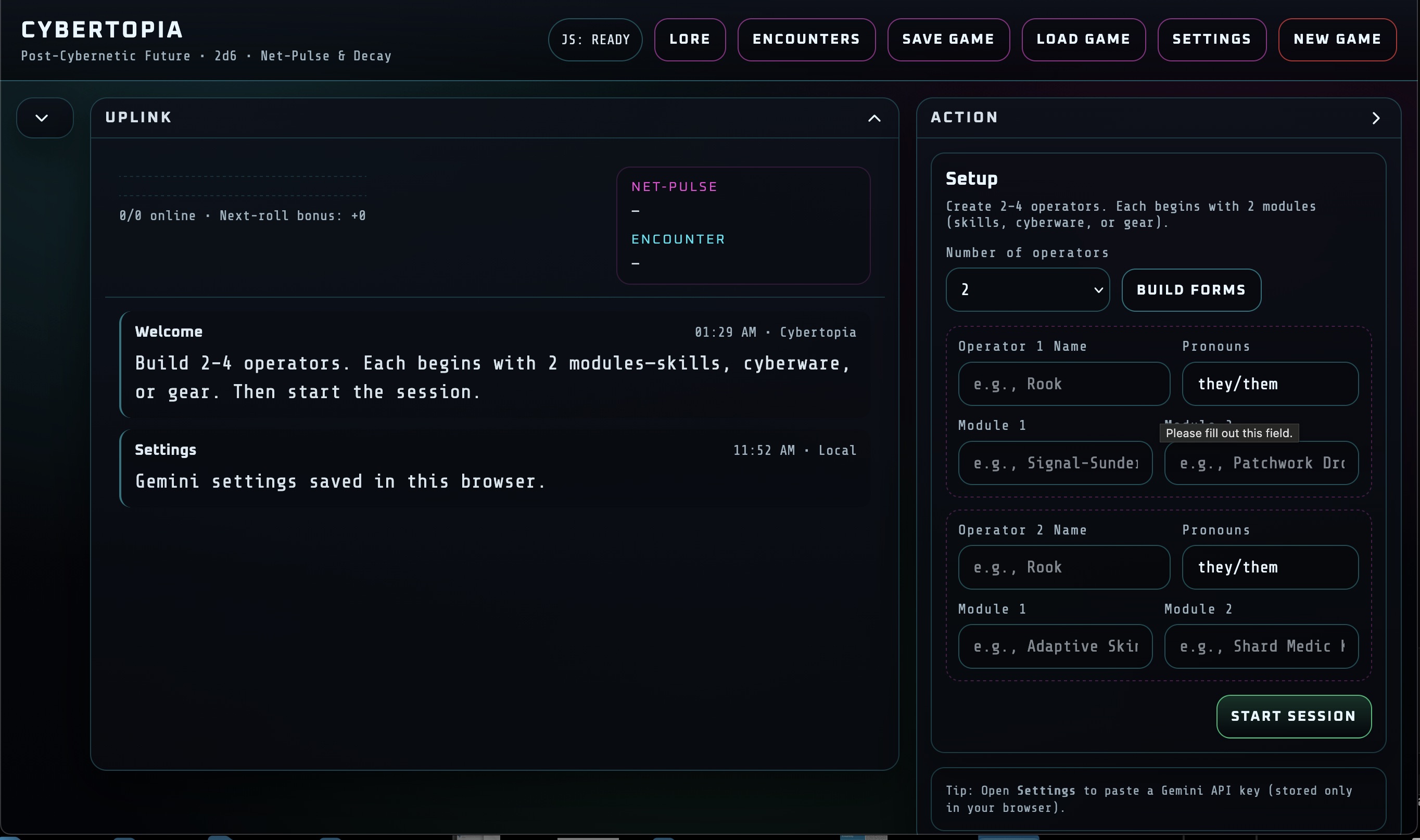
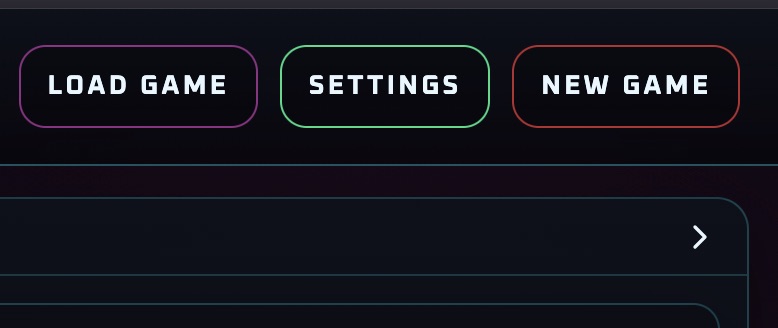
Step 13: Click Settings to Import API Key
Navigate to settings or a similar section to import your API key.
On JVision.games all API keys are stored locally so are kept safe on your computer/device.
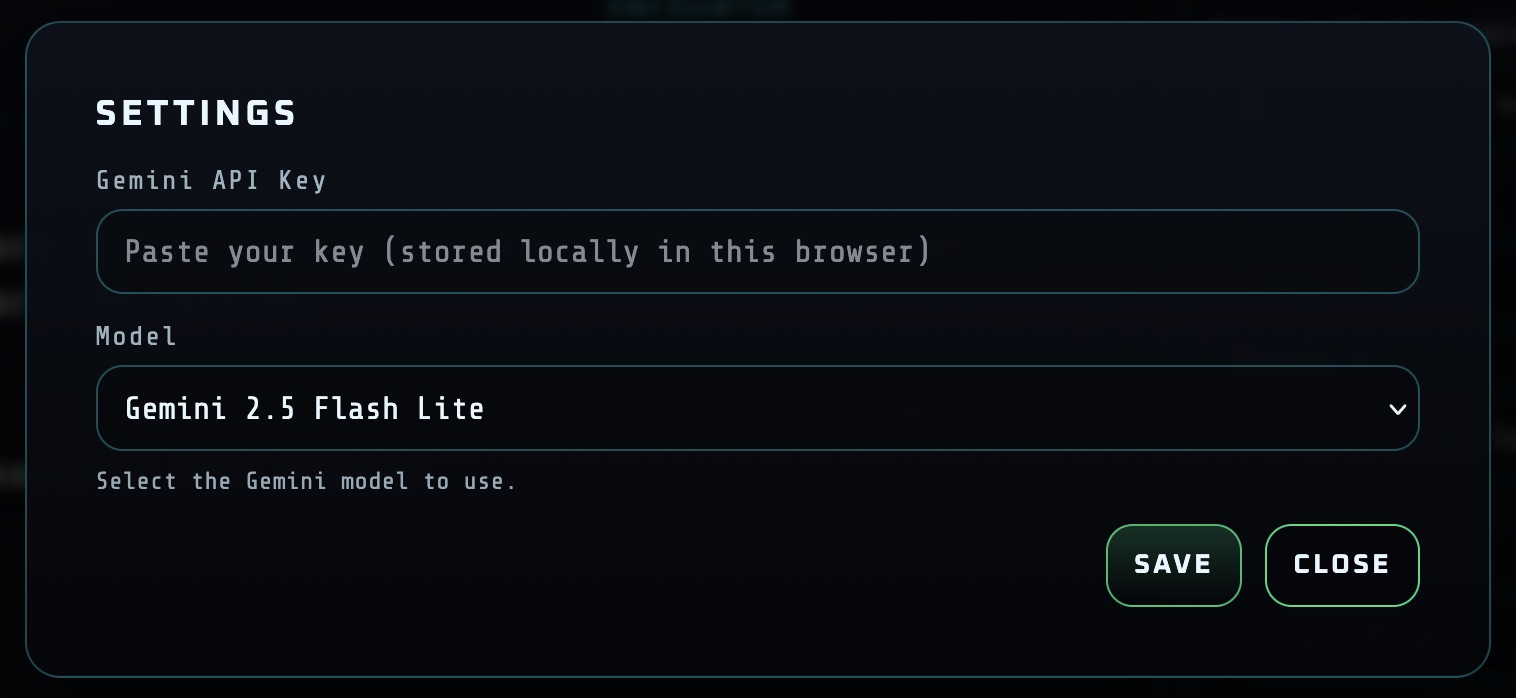
Step 14: Paste Your API Key
Paste the copied API key into the designated input field.
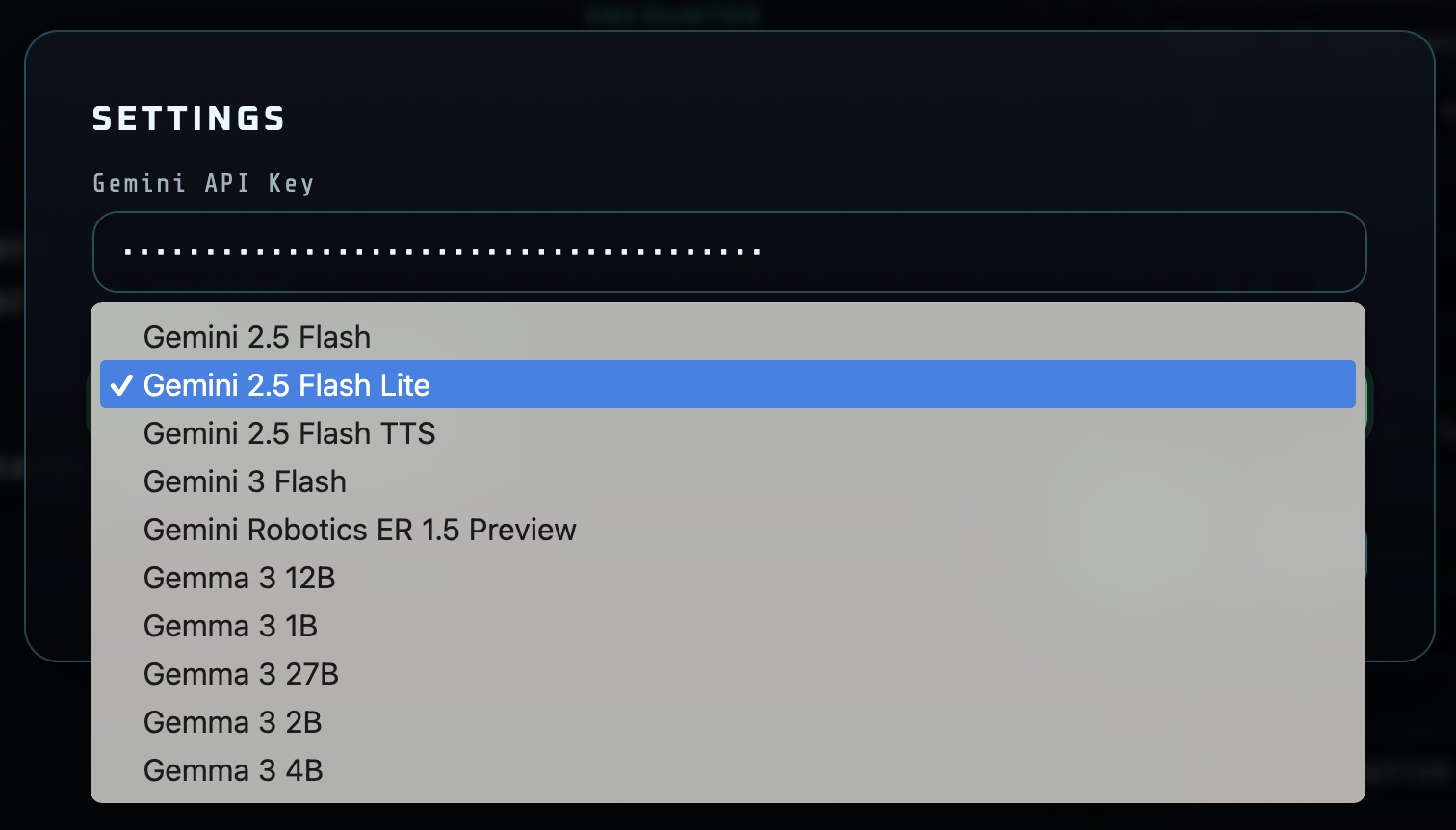
Step 15: Choose Your AI Model
Select your preferred AI model within the application settings if it is an option.
Step 16: Look for Verification
Confirm that your API key has been successfully imported and verified.
